
Dataverse Actions – Complete Guide with Real-Time Example

What are Actions in Microsoft Dataverse?
Actions in Dataverse are custom business operations that let you execute logic on demand.
Unlike workflows that run automatically, actions are explicitly triggered by:
A command bar button
JavaScript
Power Automate
Plugins
External APIs
Think of an Action as a custom API endpoint inside Dataverse.
Why Do We Need Actions?
Actions are used when:
You need manual control over execution
Logic should run only when explicitly invoked
You want to pass input parameters
You want to return output values
You want the same logic reused by JS + Power Automate + API
Real-world Use Cases
Approve / Reject records
Apply business rules manually
Trigger validations
Calculate values on demand
Integration endpoints
Types of Actions
| Action Type | Description |
| Bound Action | Runs on a specific table record |
| Unbound Action | Runs globally (no table context) |
Your example is a Bound Action.
How to Create an Action (Step-by-Step)
Create Action Process
Go to:
Solutions → New → Process → Action
Configure:
| Property | Value |
| Process Name | ApplyBusinessRules |
| Category | Action |
| Entity | User Owned (your table) |
| Enable Rollback | Enabled |
Define Input & Output Arguments

Input Parameters
| Name | Type | Direction |
| IsApproved | Boolean | Input |
| ApprovalComment | String | Input |
Output Parameters
| Name | Type | Direction |
| Result | String | Output |
| Message | String | Output |
Add Logic Inside Action
Example steps:
Update record
Apply conditions
Assign output values
Example:
If update column value to Validated
Set
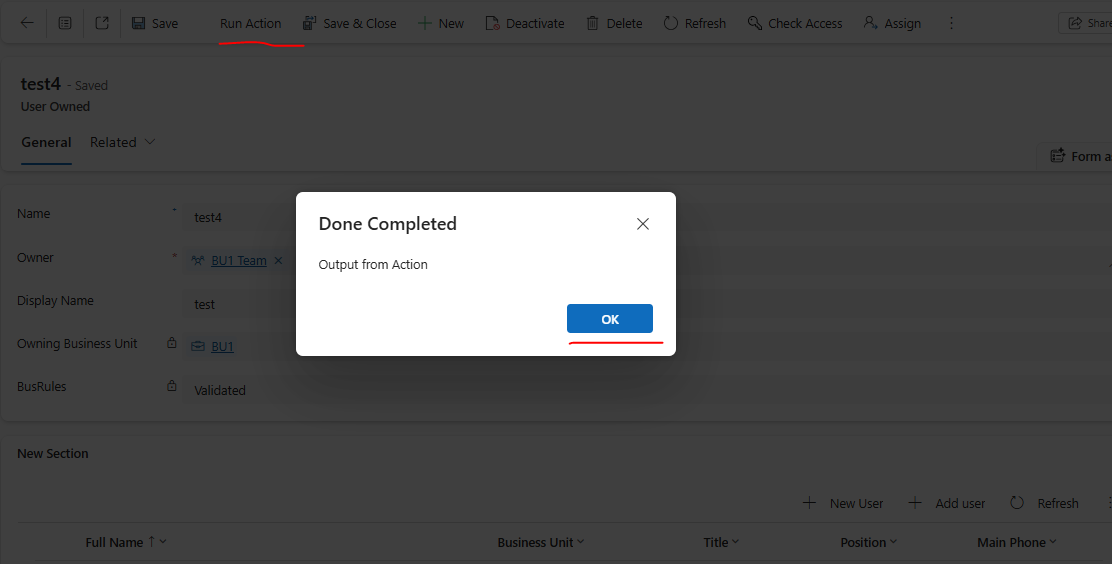
Result = "Done Completed"Set
Message = "Output from action"
How to Run Action Using JavaScript (Command Bar)
JavaScript Web Resource
- Create single web resource file.
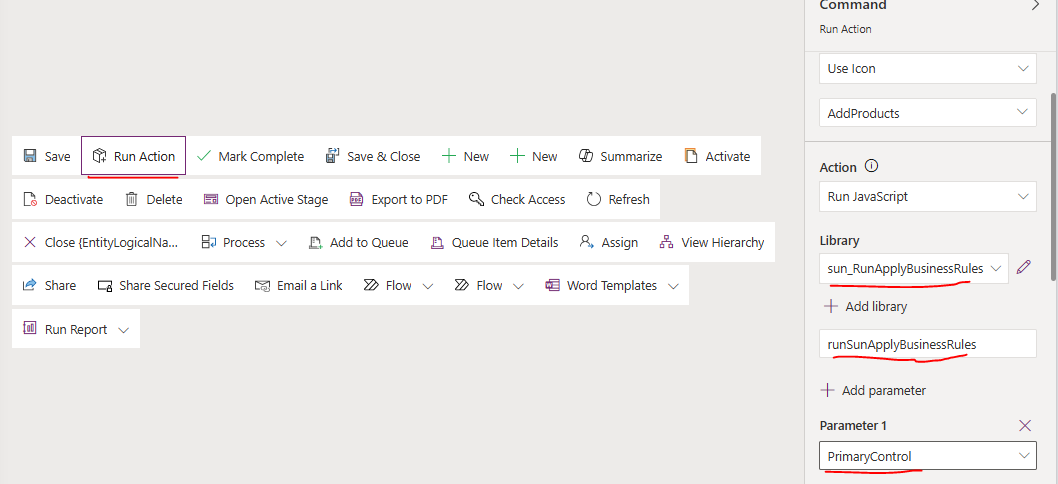
function runSunApplyBusinessRules(primaryControl) {

    var formContext = primaryControl;

    if (!formContext || !formContext.data || !formContext.data.entity) {
        Xrm.Navigation.openAlertDialog({
            title: "Error",
            text: "Form context not available."
        });
        return;
    }

    var recordId = formContext.data.entity.getId();

    if (!recordId) {
        Xrm.Navigation.openAlertDialog({
            title: "Save Required",
            text: "Please save the record before running this action."
        });
        return;
    }

    recordId = recordId.replace("{", "").replace("}", "");

    var isApproved = true;
    var approvalComment = "Approved from command bar";

    executeSunApplyBusinessRules(recordId, isApproved, approvalComment, formContext);
}
function executeSunApplyBusinessRules(recordId, isApproved, approvalComment, formContext) {

    var request = {
        entity: {
            entityType: "sun_userowned", //table logical name
            id: recordId
        },
        IsApproved: isApproved,
        ApprovalComment: approvalComment,

        getMetadata: function () {
            return {
                boundParameter: "entity",
                parameterTypes: {
                    "entity": {
                        typeName: "mscrm.sun_userowned",  //mscrm.table logical name
                        structuralProperty: 5
                    },
                    "IsApproved": {
                        typeName: "Edm.Boolean",
                        structuralProperty: 1
                    },
                    "ApprovalComment": {
                        typeName: "Edm.String",
                        structuralProperty: 1
                    }
                },
                operationType: 0,
                operationName: "sun_ApplyBusinessRules"   //action logical name
            };
        }
    };

    Xrm.WebApi.online.execute(request).then(
        function (response) {
            if (response.ok) {
                response.json().then(function (data) {

                    var result = data.Result || "Action Completed";
                    var message = data.Message || "Success";

                    Xrm.Navigation.openAlertDialog({
                        title: result,
                        text: message
                    });

                    formContext.data.refresh();
                });
            }
        },
        function (error) {
            Xrm.Navigation.openAlertDialog({
                title: "Action Failed",
                text: error.message
            });
        }
    );
}
Create and activate Process as shown above How to Create an Action (Step-by-Step)
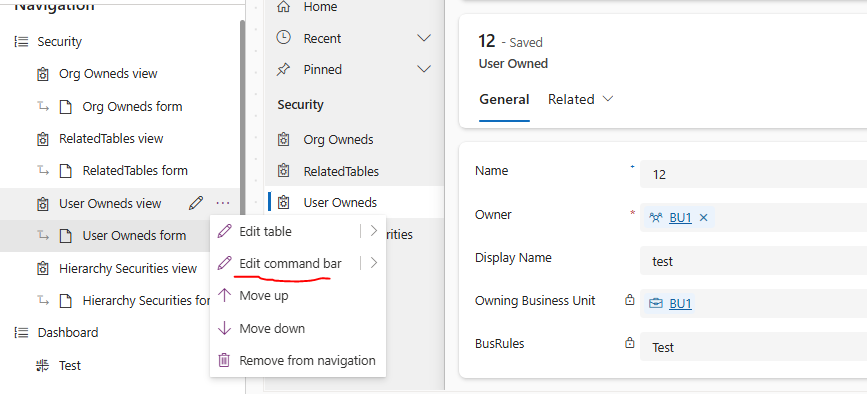
Now open Model driven in edit mode
go to the table where we will add button
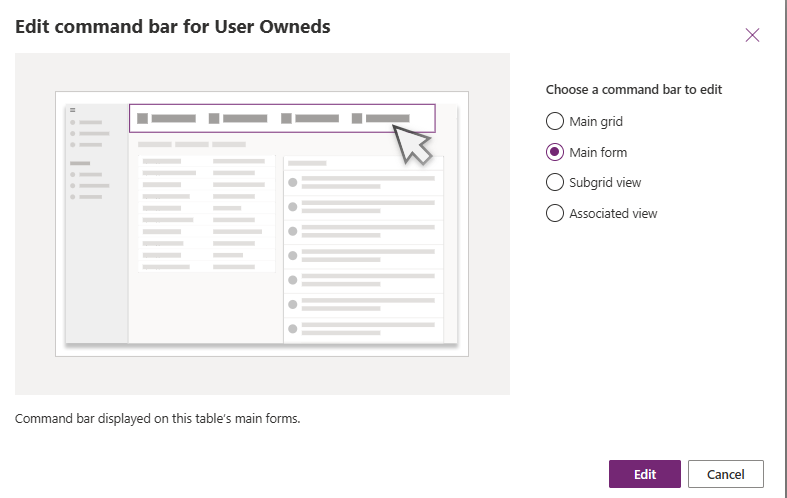
Edit command bar as shown in below image
Add button in main form
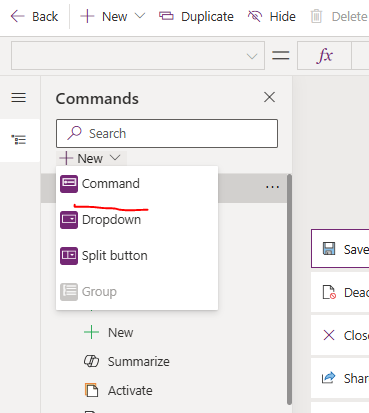
Add new button
Configure button as shown below
Save and publish
Run the app and go to the table and select run action button.
How to Run Action Using Power Automate
Steps:
Trigger: Manual / When a row is selected
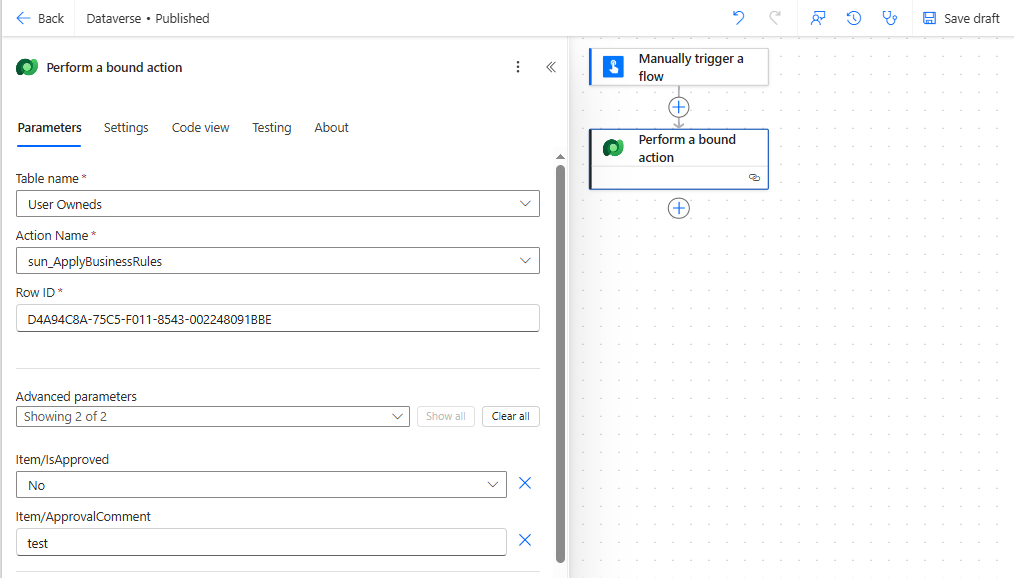
Action: Perform an unbound/bound action
Select:
Table name
Action name
Pass input parameters:
IsApprovedApprovalComment
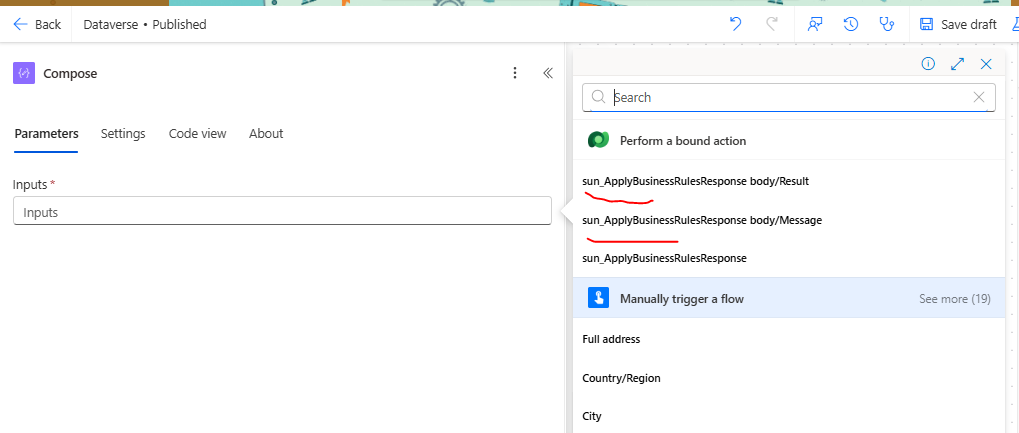
Capture output:
ResultMessage
Capture output
Actions vs Workflows – When to Use What?
Comparison Table
| Feature | Action | Workflow (Classic) |
| Trigger Type | Manual / API | Automatic |
| Input Parameters | Yes | No |
| Output Parameters | Yes | No |
| Can be called from JS | Yes | No |
| Can be called from Power Automate | Yes | Limited |
| API Friendly | Excellent | No |
| On-demand Execution | Perfect | No |
| Future Ready | Yes | Deprecated |
When to Use Actions
Manual approval
Command bar buttons
External integrations
Complex reusable logic
Output required
When to Use Workflows
Legacy systems
Auto-triggered background logic
No UI or API dependency
Final Thoughts
Actions are the modern, reusable, API-first way to implement business logic in Dataverse.
If you are:
Using JavaScript
Using Power Automate
Building enterprise-grade apps
Actions should be your first choice.


